
Introduction
This post is part of a series of deep dives into the awesomeness that is Ansible. Ansible as a tool can be explained and configured in a few ways, but in its true form, it is a tool that can be used to complete frequent, repeatable tasks such as configuration, that need to be executed to achieve a pre-defined and controlled outcome. The destination, could be servers running Anywhere , Hypervisors and one of my favorites Network Devices.
Setting up Ansible Control Node
The brains of the operation is hosted on the Control Node. Depending on your particular use case, this could be On-prem or in the cloud. Key element to remember here, at least for repeating the steps in this post, is to have line of sight to your destination.
- For a change, I am going to have my control node sit within my home lab on my proxmox server.
- The control node is going to be a vanilla Ubuntu Container running on my lab hypervisor.
- For this first post, my intention is to get the Ansible Control Node up and running.
- Provision two more additional Ubuntu Containers (Vanilla)
- Use Ansible to connect, provision Terraform, Bicep and Azure CLI onto those containers so that they can be used as Cloud Development Workstations.
Installing Ansible on Ubuntu
Installation is pretty straight forward
# Install Ansible
 sudo apt-add-repository ppa:ansible/ansible
 sudo apt update
 sudo apt install ansible
Confirm the installation has succeeded by running
ansible --version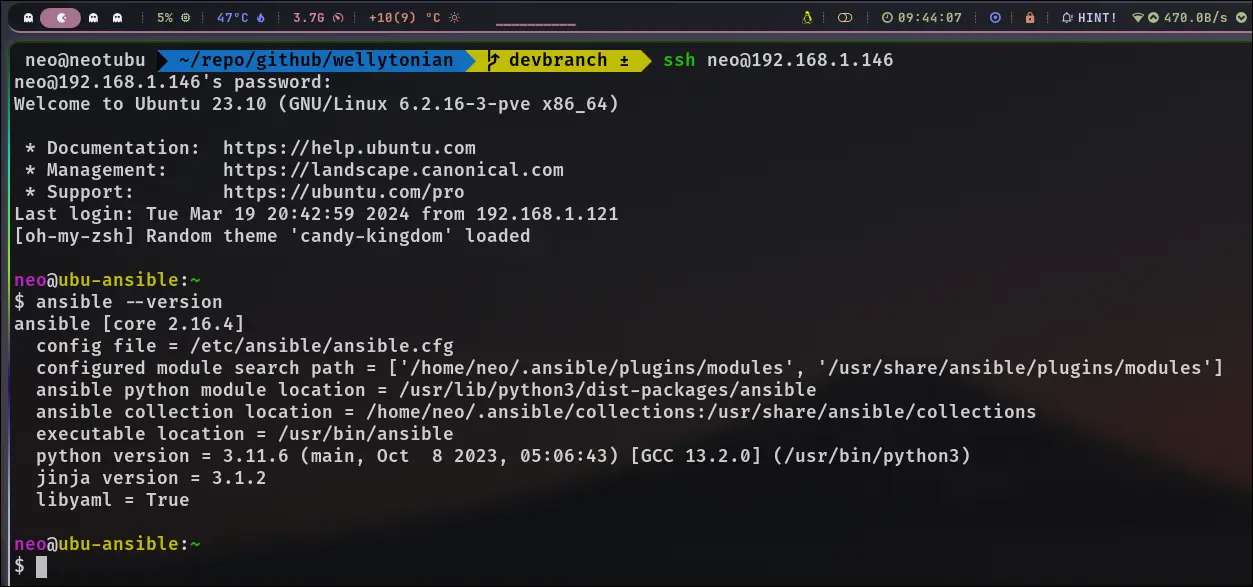
That’s it you have you first ‘Control Node’ ready for some automation !!
Creating Hosts Entry
- Host file tells your control node, all the destination devices / servers / nodes that Ansible needs to work with.
- In my case, the host file is located within /etc/ansible Screenshot 2
- There are several ways to start grouping your host servers and we will look at more clever ways of doing the same as we go through the series.
- In my case, I am going to enter the ‘Local IP’ of the two new Ubuntu Containers hosted on my proxmox server. Screenshot 3
- Let’s do a quick check to see if we are able to reach those servers from Ansible via a simple ping Screenshot of the ping
- Brilliant you’ve now got a control node that is just about ready to do some automation magic on these two host machines.
Building your first Ansible Playbook
An ansible playbook, is as the name suggests a step by step instruction for Ansible to do a set of executions, configurations, updates ( whatever you would do on those hosts manually).
For our first playbook, we are going to keep it simple and setup it up to do some initial updates and patches. Once completed, we are going to execute a bash script that installs Terraform, Bicep and Azure CLI.
Save the following ctsetup.sh script in the same folder /etc/ansible
   # Install oh-my-zsh
  sudo apt install zsh -y
  sudo sh -c "$(curl -fsSL https://raw.github.com/ohmyzsh/ohmyzsh/master/tools/install.sh)"
  echo "Oh-My-Zsh has been installed!"
Our objective is to get the Oh-my-zsh script executed on our freshly minted Containers.
Now save the following script ctsetupviaansible.yml in the same folder as well /etc/ansible.
  ---
  hosts: all
   strategy: debug
   become: false
   tasks:
       - name: Update all host/vm packages
         ansible.builtin.apt:
                 update_cache: true
                 cache_valid_time: 3600
                 name: "*"
                 state: latest

       - name: Copy ctsetup script
         ansible.builtin.copy:
           src: ctsetup.sh
           dest: ctsetup.sh
           mode: 0770

       - name: Run ctsetup.sh
         command: bash ctsetup.sh
This is a very basic Ansible Playbook to get you started
- Within Tasks, the playbook tries to do the following:
- Update the host first
- Copy ctsetup.sh script over to the host machine. This would result in the file being copied to home directory of the user.
- It then runs ctsetup.sh as the connected user.
- Ansible achieves all this via SSH. So this goes back to our line of sight between the control node and the host (which is where we can get creative).
- Within Tasks, the playbook tries to do the following:
Building the Ansible Configuration File
We are just about ready to execute on Ansible, but we need to get our Ansible Configuration File ready. This requires a ‘few’ posts to go through, however let’s get a basic config file going to start off with and tweak it as we go along.
If you head down to official github for Ansible here and grab the content and save it as ansible.cfg within /etc/ansible.
There are lot of options here, but the only one we are going to edit / uncomment is this line ‘SSH key host checking’
    # uncomment this to disable SSH key host checking
    # host_key_checking = False
to
    # uncomment this to disable SSH key host checking
     host_key_checking = False