
Introduction
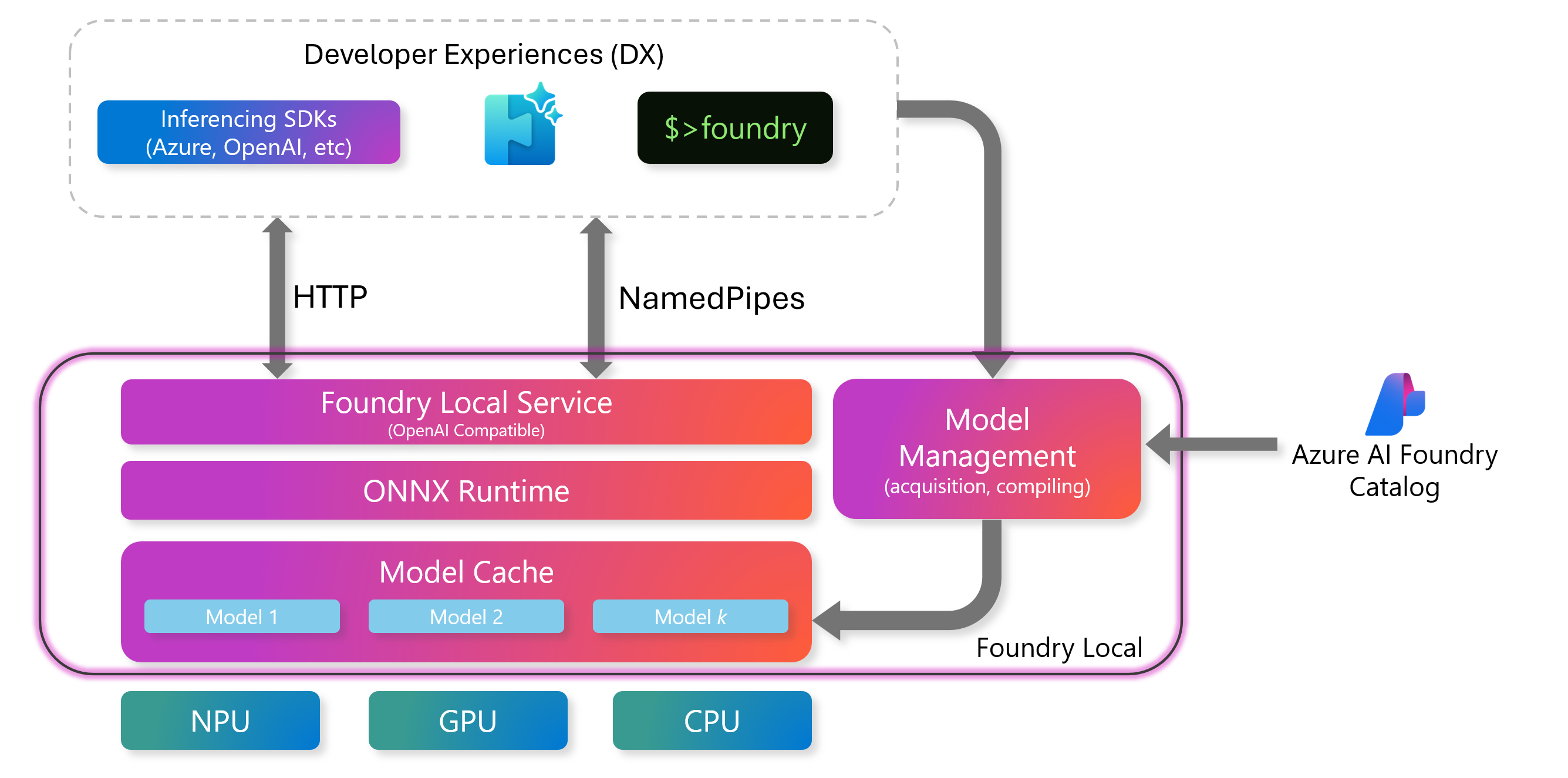
Microsoft has introduced Foundry Local, an on-device AI inference solution that offers performance, privacy, customization, and cost advantages. It integrates seamlessly into your existing workflows and applications through an intuitive CLI, SDK, and REST API.
Key Features
- On-Device Inference: Run models locally on your own hardware, reducing costs while keeping all your data on your device.
- Model Customization: Select from preset models or use your own to meet specific requirements and use cases.
- Cost Efficiency: Eliminate recurring cloud service costs by using your existing hardware, making AI more accessible.
- Seamless Integration: Connect with your applications through an SDK, API endpoints, or the CLI, with easy scaling to Azure AI Foundry as your needs grow.
High Level Architecture
System Requirements
- Operating System: Windows 10 (x64), Windows 11 (x64/ARM), macOS.
- Hardware: Minimum 8GB RAM, 3GB free disk space. Recommended 16GB RAM, 15GB free disk space.
- Network: Internet connection for initial model download (optional for offline use)
- Acceleration (optional): NVIDIA GPU (2,000 series or newer), AMD GPU (6,000 series or newer), Qualcomm Snapdragon X Elite (8GB or more of memory), or Apple silicon.
Deployment
Windows
winget install Microsoft.FoundryLocal
MacOS
brew tap microsoft/foundrylocal
brew install foundrylocal
Usage
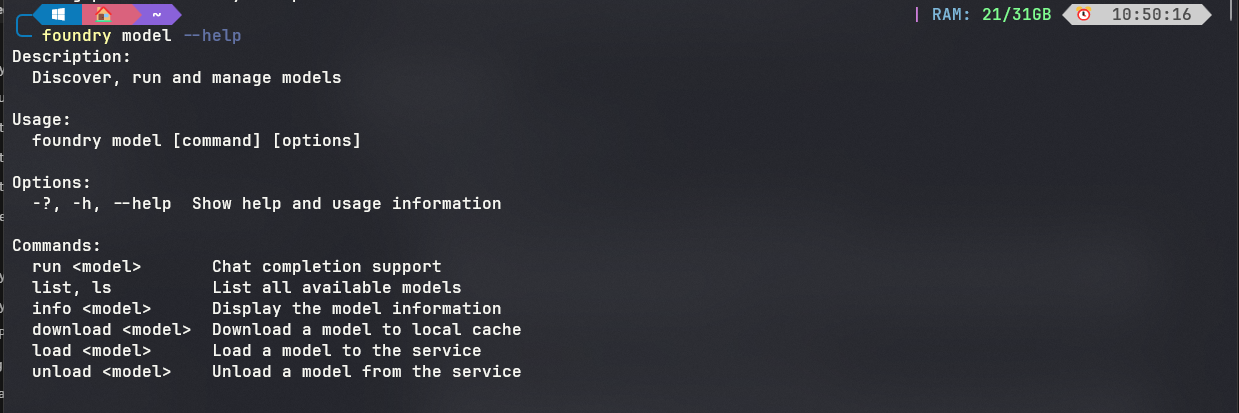
- Search for all the commands that can be used currently
- Get a list of all the models that can be used
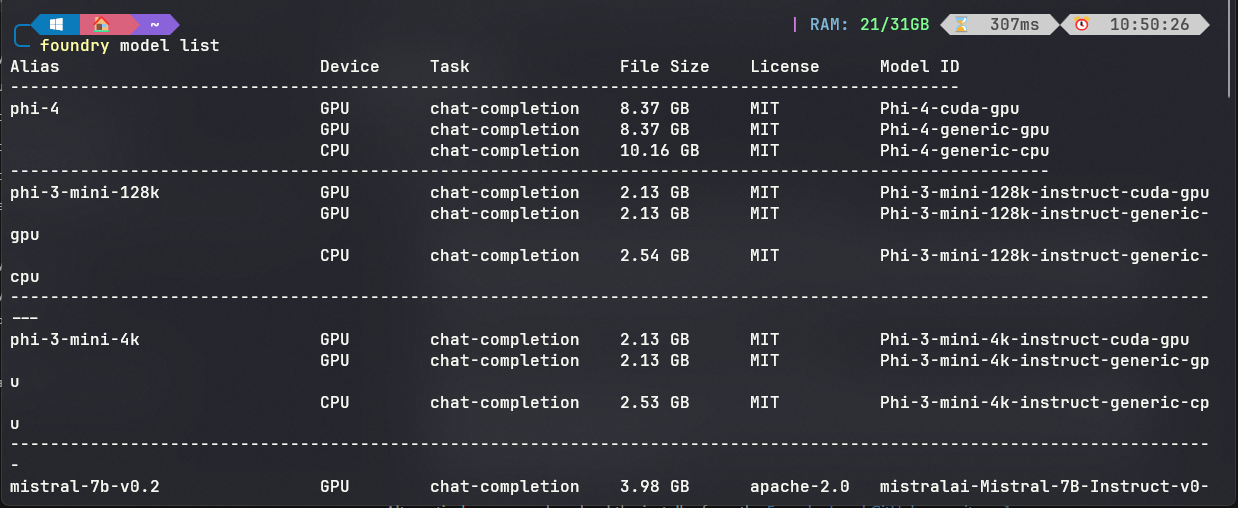
Note : Screenshot is only showing a small subset of the models. There’s plenty more :)
As mentioned in the intro there are several ways to interact at this point, however for the sake of blog, I am going to show two :
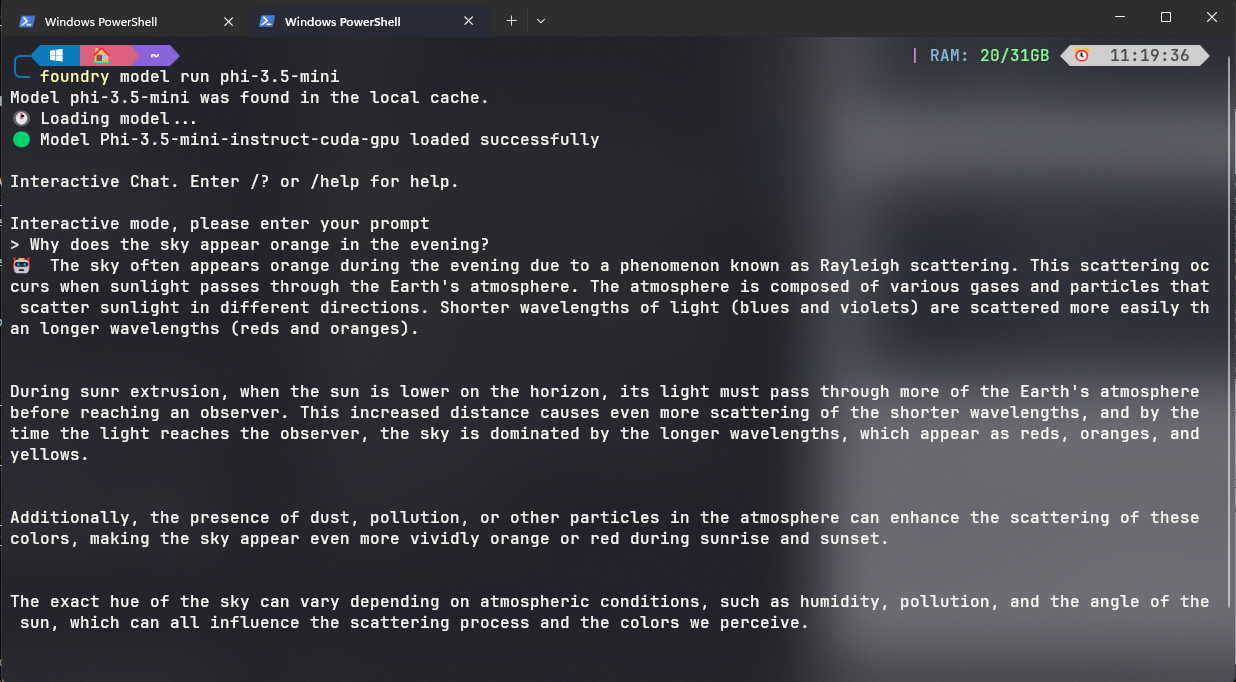
- Terminal / Command Line
- Open WebUI
Terminal
Open WebUI
- Open your terminal and type the following command to find the service URL and PORT.
foundry service status \\ Shows the port the service is running on

- However, in my testing, I have found that
- If you have a remote Open WebUI trying to call your Foundry Model , it has some COR’s issues which prevents the connection from happening.
- So I deployed the Open WebUI docker on the same machine that is running Azure AI Foundry local.
- Steps to get it working
- Once Open Web UI has been deployed , click on your name at the bottom left hand corner
- Click on Settings
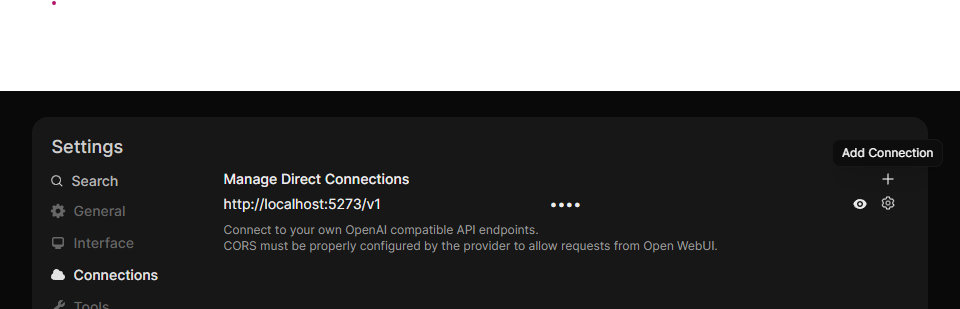
- Click the ‘+’ sign to add a new connection
- Based on the port that Foundry is using
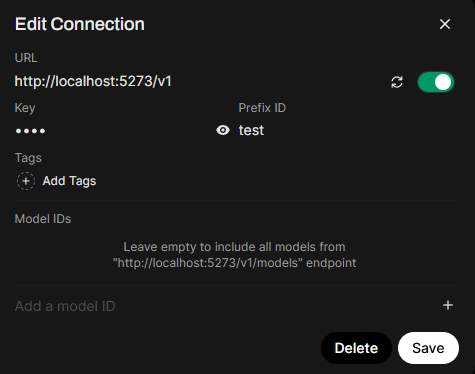
- API and Prefix ID can be any random text - but definitely needs something , so dont leave it blank.
Testing Open WebUI
- Open a new chat and the on the top , you should be able to drop down and see the available models from Foundry being displayed
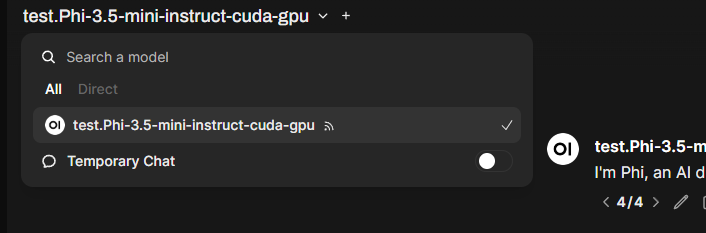
- That’s it , you should now be able to chat with your model locally, pretty much without the need for Internet

Summary
Its ideal when:
- You want to keep sensitive data on your device.
- You need to operate in environments with limited or no internet connectivity.
- You want to reduce cloud inference costs.
- You need low-latency AI responses for real-time applications.
- You want to experiment with AI models before deploying to a cloud environment.
Wishes
- Ability to deploy like a docker container - Ollama / Hugging Face
- Ability to Edit the service connection - so can be setup in a headless server
- Ability to run multiple models at the same time - not super important.
Pretty excited , so ya watch this space !